


October 19, 2026
Mobile App Design
App Design Inspiration: 15 Real Projects & The Lessons Behind Them


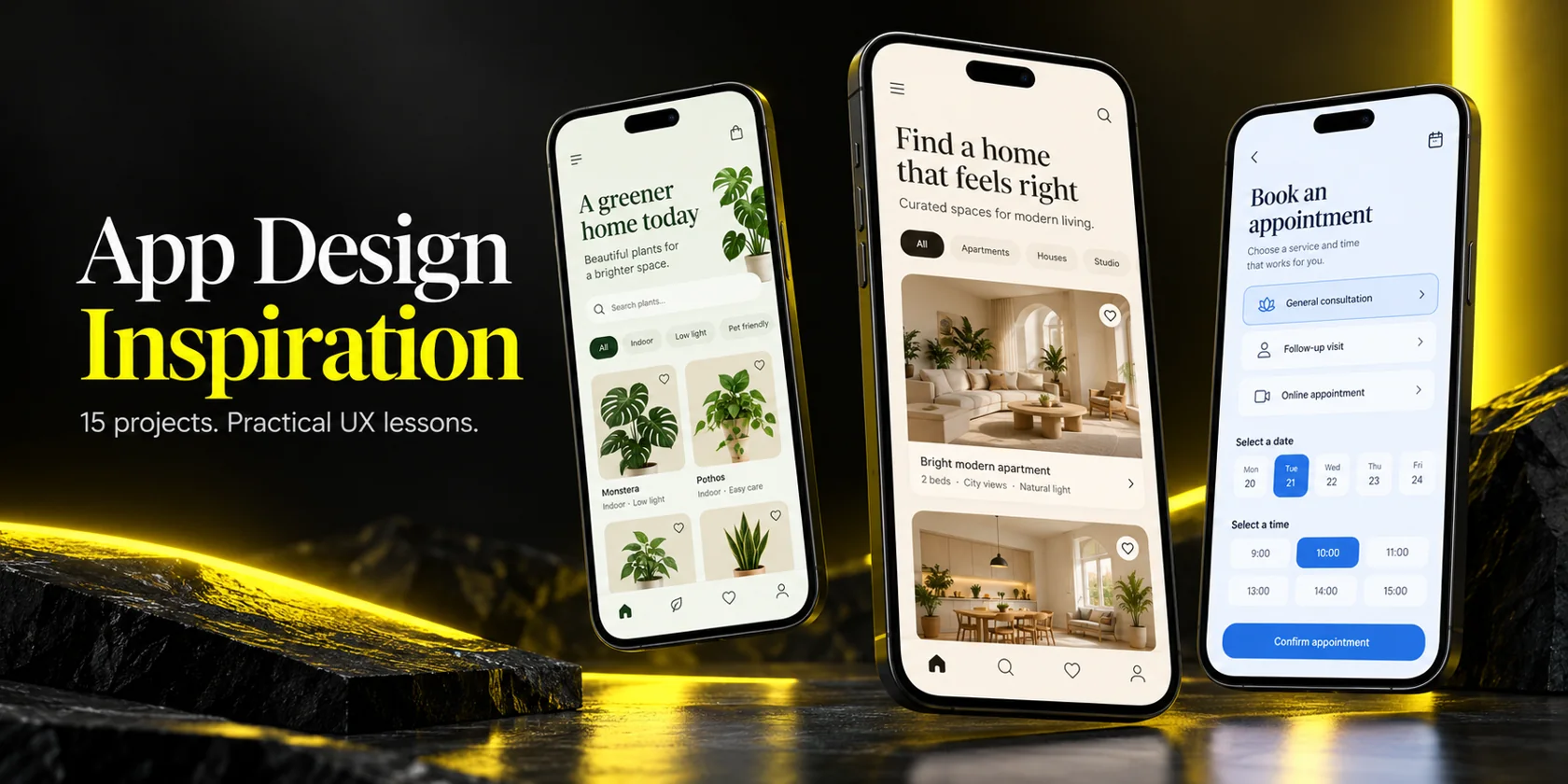
The best app design inspiration comes from real products that solved a specific user problem, not from screens that only look good. The 15 Wolfpixel projects below cover e-commerce, AI, healthcare, HR, logistics, fintech, and real estate. For each one, you'll see why the design works, the UX/UI lesson behind it, and how to apply that lesson to your own app. Use them alongside current mobile UI trends and accessibility standards so your app looks modern and is still easy to use.
Most app design inspiration online has the same problem. It's a scroll of beautiful screens with no context about what problem each screen solved, who it was for, or whether it could survive real data and real users.
I've spent six to seven years designing mobile apps, SaaS dashboards, and product ecosystems. The pattern I see most often is a founder arriving with a mood board of 40 Dribbble shots. The work then starts with finding out which of those ideas actually fits their users. Inspiration is only useful once you can explain why a design works and what part of it transfers to your product.
That's the purpose of this guide. Every inspiration below is real, published Wolfpixel work from our website, Behance, or Dribbble. Some are full client case studies with documented scope and timelines. Others are design explorations published on Dribbble and Behance, and I label which is which. Around them, I cover the mobile UI trends that matter in 2026, the usability and accessibility standards that should not be negotiable, common mistakes, the design process, what to budget, and how to pick a direction that fits your business.
Useful app design inspiration shows a design decision and the problem it solved, so you can reuse the reasoning instead of copying the pixels. A screenshot shows the result. A good reference also shows the constraints that produced it: the user, the context, the data, and the business goal.
When I review references with clients, I ask three questions on every screen. First, what job is this screen doing for the user? Second, does it still work with real content, such as long names, empty states, slow networks, and larger text sizes? Third, which part is transferable, like a navigation pattern or a trust signal, and which part is a brand expression that belongs only to that product?
That third question matters most. Copying a competitor's visual style gets you a lookalike. Borrowing a structural idea, such as a camera-based identity feature or a comparison view that explains an AI recommendation, gets you a better product with its own identity.
It also helps to know what kind of reference you're looking at. A client case study has been through research, iteration, and stakeholder decisions. A concept or exploration shot shows craft and direction, but it hasn't necessarily met real users. Both are valuable, and it's worth judging them differently. In the 15 inspirations below, I've labeled each one.
Share your brief with Wolfpixel to discuss your users, platform scope and the design approach that fits your product.


Useful mobile UI directions to evaluate in 2026 include layered materials, expressive controls, modular layouts and AI within core workflows. These are design options, not a ranked survey of adoption. Choose them when they improve a user’s task.
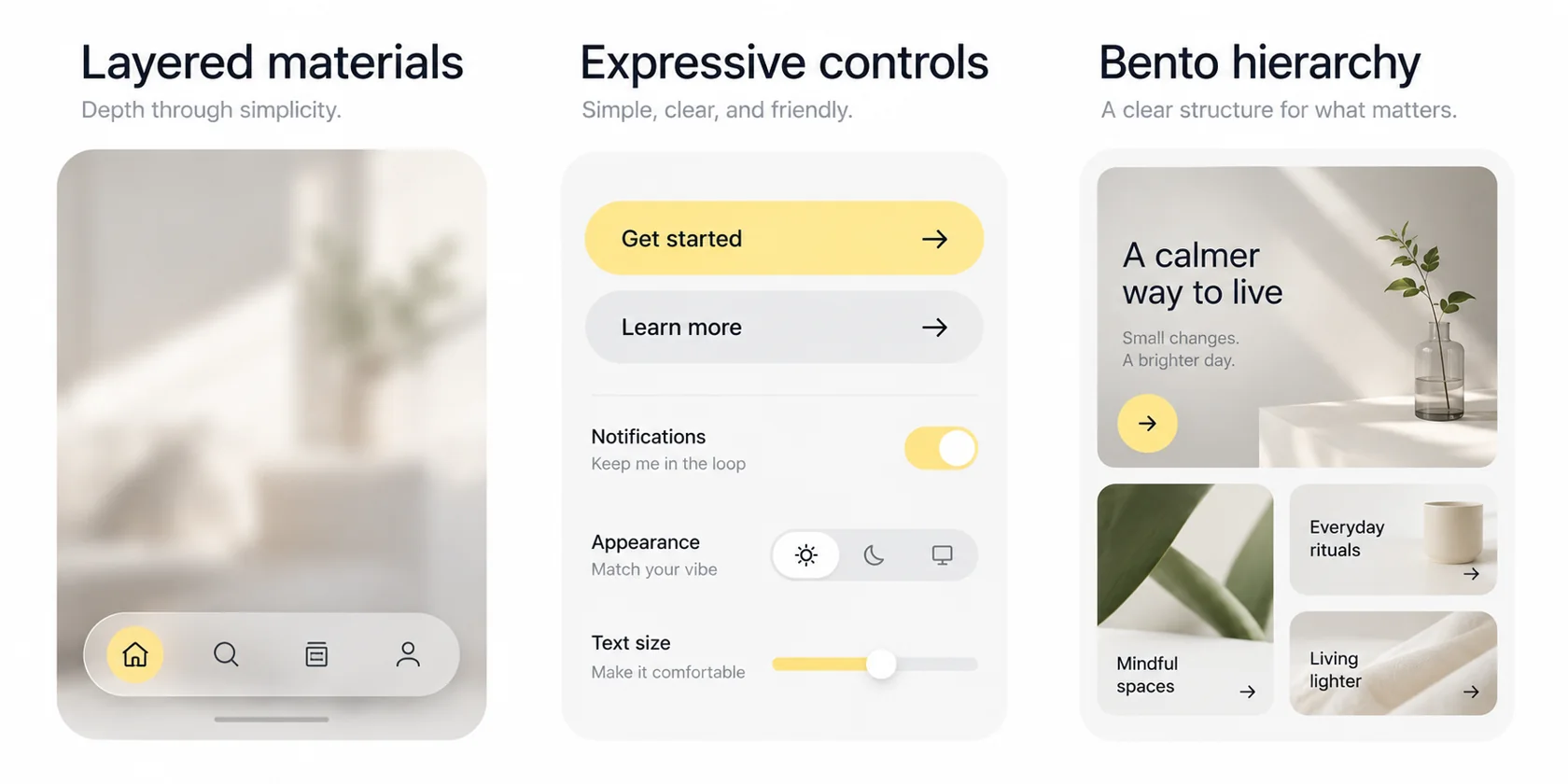
Liquid Glass and layered translucency. Apple introduced Liquid Glass in June 2025 as part of its iOS 26 redesign. Its translucent material responds to surrounding content. Use Apple’s Liquid Glass overview as the starting point, then test legibility over real backgrounds and use native components where appropriate.
Material 3 Expressive. Google announced the system in May 2025, with expressive shapes, typography, color and spring-based motion. Its September 2025 Pixel rollout brought the update to more Pixel devices. Cross-platform products should preserve shared product logic while respecting each platform’s controls and navigation.
Bento grid mobile UI. Bento layouts arrange content into modular cards of different sizes, like compartments in a lunch box. On mobile they work well for home screens and dashboards: a large card for the primary metric or action, smaller cards for secondary information. The discipline is hierarchy. A bento grid where every tile competes for attention is just a cluttered grid.
Mobile animation trends. Motion in 2026 is less decorative and more explanatory. Spring physics, shared-element transitions that show where content came from, and small micro-interactions that confirm an action all help users understand cause and effect. The rule I give every team is simple: every animation should answer "what just happened?" or "where did this go?" Always respect the system's Reduce Motion setting.
AI inside the flow, not behind a button. The strongest AI products no longer bolt on a chat window. They use AI to cut the number of decisions a user has to make, then show the reasoning. You'll see this in several inspirations below, including Lyvio and CareUp.
Dark or muted, data-first interfaces. Either theme can support scanning when the hierarchy is clear. Dark styling alone does not make data easier to understand. Crimino’s published example below uses a light dashboard within a dark presentation, so evaluate the actual interface separately from its showcase background.
Editorial typography. Premium consumer apps are borrowing from print, with confident type scales and generous spacing, to signal trust and quality without extra decoration.
These 15 references come from Wolfpixel’s published website case studies, Behance showcases and Dribbble explorations. Some are desktop dashboards or multi-surface platforms rather than mobile apps. The lessons below are design interpretations, not claims of measured conversion, retention or clinical outcomes. A published case study does not by itself verify a shipped product.
| # | Project | Source | Type |
|---|---|---|---|
| 1 | Leafy Plant | Website | Case study |
| 2 | Lyvio | Website | Case study |
| 3 | Core.hr | Website | Case study |
| 4 | Blenz | Website | Case study |
| 5 | Crimino | Website | Case study |
| 6 | CareUp | Behance | Showcase |
| 7 | RoomMind AI | Behance | Showcase |
| 8 | AI-Powered Delivery App | Behance | Showcase |
| 9 | AI Personal Finance Dashboard | Behance | Showcase |
| 10 | OpsLoop | Behance | Showcase |
| 11 | Education Planner App | Dribbble | Exploration |
| 12 | Delivery Earnings & Tracking App | Dribbble | Exploration |
| 13 | Doctor Appointment Booking App | Dribbble | Exploration |
| 14 | Real Estate Search & Listing App | Dribbble | Exploration |
| 15 | Healthcare Analytics Dashboard | Dribbble | Exploration |
Source: published Leafy Plant case study.
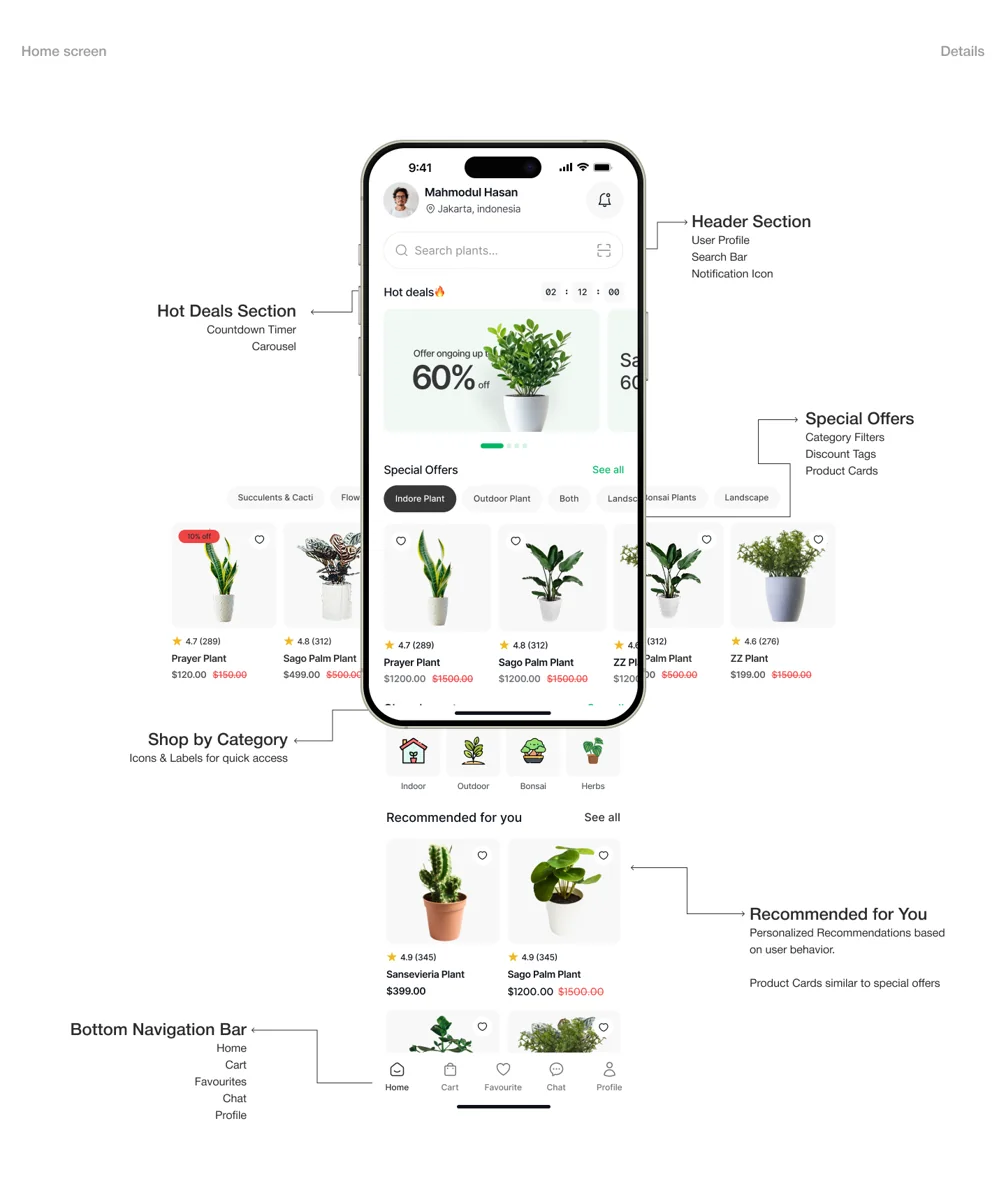
Why it works: Plant buyers face too many options, weak categorization, and little guidance. Leafy Plant responds with smart category filtering, personalized recommendations, a wishlist, a plant-scanning feature for instant identification, a simpler checkout, and real-time order tracking. The whole experience uses a calm, nature-inspired palette. We built it over six focused sprints in 21 days, with more than 20 iterations across 40+ screens.
Key UX/UI lesson: Adding a utility feature to a shopping app gives people a reason to open it when they're not buying. The scanner turns Leafy Plant from a store into a plant companion, and it may give users a reason to return between purchases. Validate that with usage data.
Apply it to your app: If you sell a considered product like wine, skincare, auto parts, or furniture, ask what "identify, check, or diagnose" feature you could add with the camera. Then connect the result directly to saved lists and relevant products.
Source: published Lyvio case study.
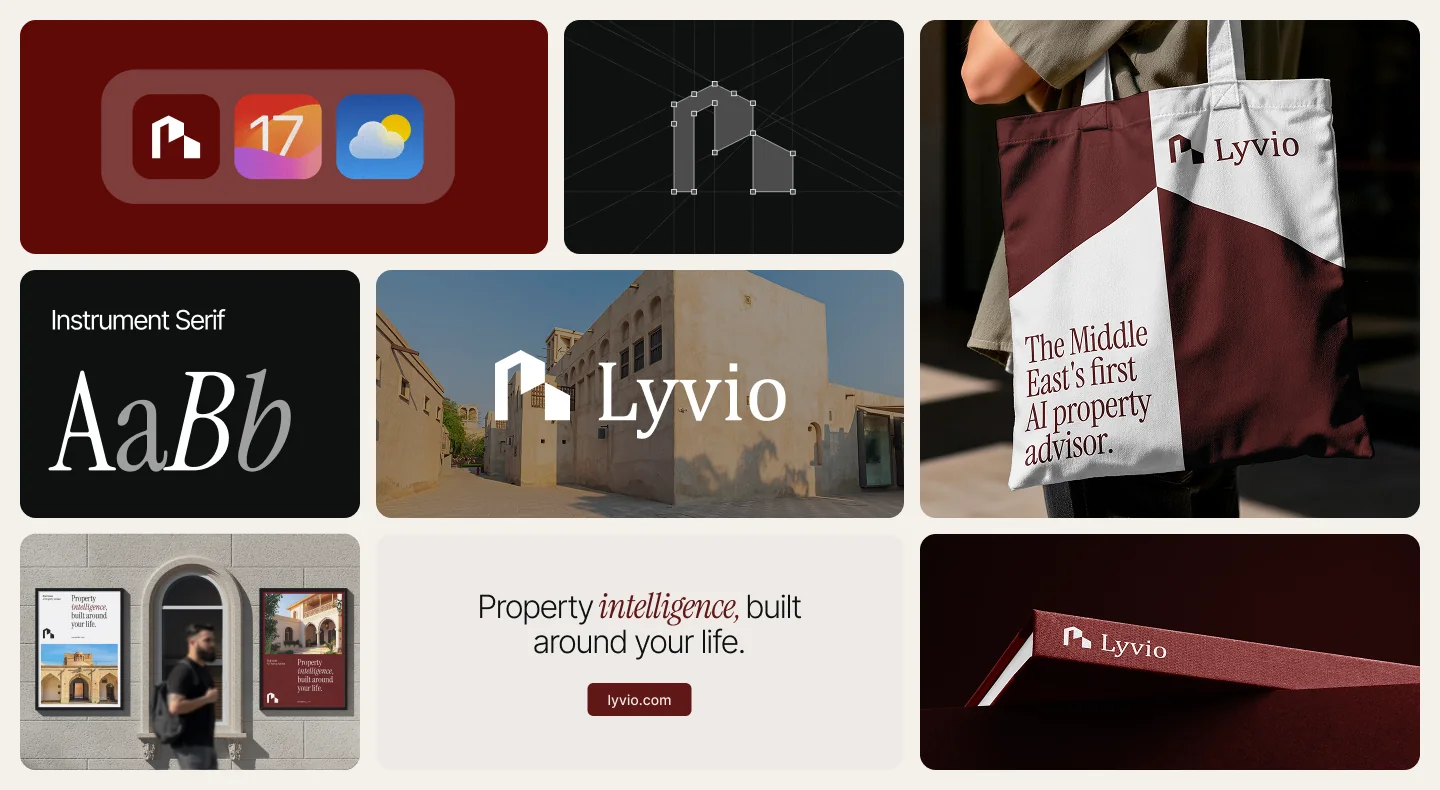
Why it works: Traditional property search overwhelms people with thousands of listings and complicated filters. Lyvio recommends homes based on lifestyle and behavior instead. It uses personalized onboarding, AI recommendations, side-by-side AI comparisons, and lifestyle scoring. The 15-day engagement included brand identity, user persona research, a complete mobile user flow, and a grid and layout system, all wrapped in editorial typography and a premium palette.
Key UX/UI lesson: Good AI UX cuts the number of choices and makes its reasoning visible. The comparison view and lifestyle scores let users see why a home was recommended. In a high-stakes purchase, that visibility is what builds trust.
Apply it to your app: Any app with a painful selection step, such as insurance, SaaS plan pickers, travel, or recruiting, can swap filter overload for a short preference onboarding. Follow it with explained recommendations and a comparison view.
Source: published Core.hr case study.
Why it works: Core.hr combines a brand identity, management dashboards, and a mobile experience for attendance, leave, and reporting. The positioning is "human-first," which matters in a category where most tools feel like compliance software.
Key UX/UI lesson: Different roles need different surfaces. Employees do quick, frequent tasks like checking in or requesting leave, which belong on mobile. Managers analyze patterns, which belongs on a larger dashboard. Trying to fit both jobs into one interface usually serves neither well.
Apply it to your app: Map your users by how often they do each task and how complex it is. Put high-frequency, low-complexity tasks on mobile with as few taps as possible, and keep analysis and configuration for web app design.
Source: published Blenz case study.
Why it works: Blenz connects creators and brands through campaign management, analytics, and payments in one place. Each side of the marketplace can see what it cares about: brands want campaign performance, creators want clear deliverables and reliable payment.
Key UX/UI lesson: Two-sided products fail when they are designed for only one side. Payments and status transparency act as the trust layer that keeps both sides active.
Apply it to your app: If you're building a marketplace for services, freelancers, or rentals, design each side's home screen around its own main question. For providers, that's usually "when do I get paid?" For buyers, it's "is this on track?"
Source: published Crimino case study.
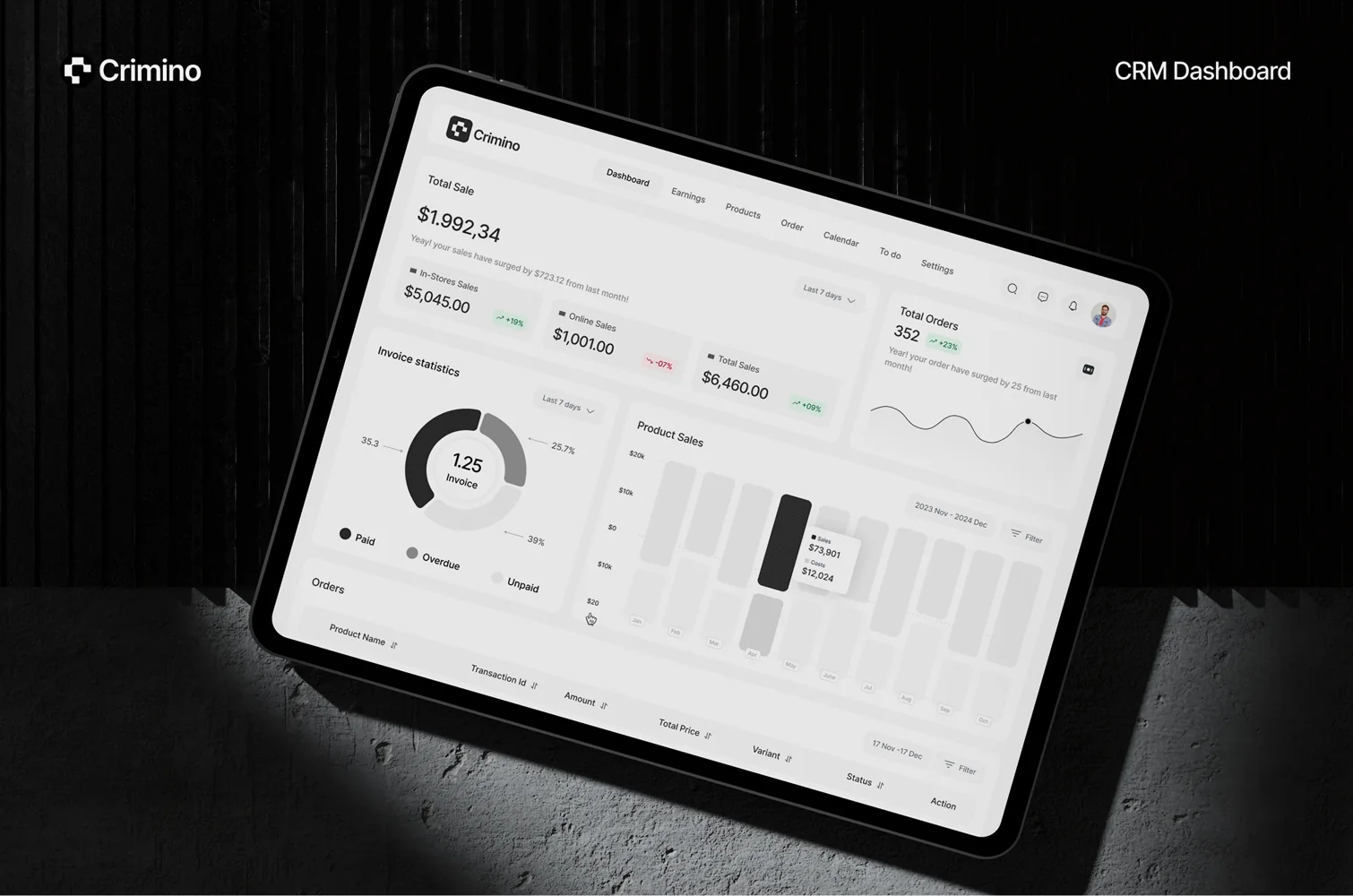
Why it works: Crimino’s published presentation shows a light CRM interface on a tablet against a dark background. The dashboard organizes customer and sales information into sections; the useful lesson is the relationship between data hierarchy and scanning, rather than an assumption that the interface itself is dark mode.
Key UX/UI lesson: Prioritize important data with alignment, grouping and restrained emphasis. Test the actual screen in both themes before concluding that either one improves speed or comprehension.
Apply it to your app: In fintech, operations, or analytics apps, pick the three to five numbers users check most often and give them clear priority. Reduce everything else in contrast and saturation, and use brand color sparingly for status and action.
Source: published CareUp showcase.
Why it works: CareUp presents healthcare access as a friendly, AI-supported experience. The showcase screen featured on Wolfpixel's homepage shows a psychologist's profile with online status and an hourly rate visible at a glance. Those are the facts a patient needs before booking.
Key UX/UI lesson: In healthcare, anxiety is part of the user experience. Showing availability, credentials, and price upfront removes the uncertainty that often makes people abandon a booking.
Apply it to your app: For any service booking app, such as tutoring, legal advice, therapy, or home services, put the three trust facts (who, when, how much) on the card before the "Book" button. Don't hide them behind extra taps. Apply the pattern carefully to the privacy, accessibility and workflow needs of your own service.
Source: published RoomMind AI showcase.
Why it works: RoomMind AI brings AI-powered room analysis and interior design ideas to iOS. Its category is a strong example of 2026's camera-first, AI-in-the-flow products, where the phone's camera is the main input instead of a form.
Key UX/UI lesson: Camera-based AI features succeed or fail at capture. Users need to know what to point at, how to frame it, and what they'll get back. A clear before-and-after framing turns an impressive demo into something people can reliably repeat.
Apply it to your app: If you're adding visual AI, like skin analysis, damage estimates, or document scanning, design the capture guidance and the result explanation as carefully as the model output itself.
Source: published logistics app showcase.
Why it works: This delivery platform applies AI to logistics, a category where customers mainly ask two questions: where is it, and when will it arrive?
Key UX/UI lesson: Tracking screens are really about managing anxiety. The design goal is to answer "is everything okay?" in under a second, with status first, the ETA large and clear, and details only if the user wants them.
Apply it to your app: Any app with a waiting period, whether that's orders, applications, repairs, or approvals, benefits from a status-first screen with plain-language milestones and proactive alerts when something changes.
Source: published personal finance dashboard showcase.
Why it works: Personal finance is where users most need clarity and least tolerate surprises. This project applies AI to money management in a dashboard format. Its published showcase explores a dashboard approach to financial information.
Key UX/UI lesson: In finance, AI should add a layer of interpretation on top of familiar charts rather than replace them. Users trust a plain-language insight ("you spent more on dining this month") more when they can see the numbers behind it.
Apply it to your app: Keep standard visualizations people already understand, and add short, dismissible AI summaries that link directly to the data supporting them.
Source: published OpsLoop showcase.
Why it works: OpsLoop focuses on micro-tasks, meaning small units of work that pile up quickly. The published showcase focuses on organizing micro-task work and its surrounding workflows.
Key UX/UI lesson: When the unit of work is small, the interface overhead has to be even smaller. Fast capture, clear states, and bulk actions matter more than feature depth.
Apply it to your app: Time how long it takes to create and complete one item in your app. If the interface takes longer than the task itself, remove steps, add smart defaults, or support batch actions.
Source: published education planner exploration.
Why it works: This exploration combines education and planning, so the product is organized around the learner's schedule rather than around a course catalog.
Key UX/UI lesson: For time-based products, time should be the home screen. A student opening the app wants "what's next?" before "what's available?"
Apply it to your app: Fitness, habit, medication, and learning apps can all use a timeline or agenda as the default view, with the next action placed within thumb reach.
Source: published delivery earnings app exploration.
Why it works: This exploration designs for the courier rather than the customer, putting earnings and customer tracking in the driver's view. Read alongside inspiration #8, it shows both sides of the same logistics ecosystem.
Key UX/UI lesson: Workforce apps compete for engagement just like consumer apps. Showing earnings progress motivates the people whose work makes the whole service run.
Apply it to your app: If your product has a provider side (drivers, cleaners, tutors, sales reps), give them a clear summary of progress and earnings, not just a task queue.
Source: published doctor booking app exploration.
Why it works: Tagged for healthcare, telemedicine, and appointments, this exploration takes on one of the most common and most frustrating mobile flows: booking a doctor.
Key UX/UI lesson: Booking flows should be as short as possible: choose a provider, choose a time slot, confirm. Every extra screen between intent and confirmation is a point where people drop off.
Apply it to your app: Audit your booking or checkout flow. Pre-fill what you already know, show available slots instead of a blank calendar, and put confirmation details in one summary screen.
Source: published property search app exploration.
Why it works: This exploration, tagged for maps, listings, and marketplace, takes a classic approach to property search. Compare it with Lyvio (#2): two valid answers to the same problem, one map-and-list based, the other AI-guided.
Key UX/UI lesson: Location products need both a map and a list, with an easy switch between them and a shared state. A filter applied on the map should still be applied in the list.
Apply it to your app: Anywhere location matters, such as rentals, restaurants, events, or services, design map and list as two views of the same results, not as separate features.
Source: published healthcare analytics dashboard exploration.
Why it works: This is the clinician side of healthcare: analytics and patient management for professionals who need a lot of information quickly.
Key UX/UI lesson: Professional tools can be information-dense, but dense doesn't have to mean cluttered. Consistent alignment, restrained color, and predictable placement let experts scan large amounts of data safely.
Apply it to your app: If your users are experts, don't over-simplify. Give them density, keyboard or gesture shortcuts, and saved views, and use color only for meaning such as alerts and status.
Here’s a quick overview of the 15 app UI examples featured above, including the project name, source, and design type, so you can easily compare the different inspirations at a glance.
Build accessibility into the product from the start: readable contrast, comfortably sized controls, text scaling, clear screen-reader labels and reduced-motion support. WCAG conformance requires evaluating all applicable criteria; this checklist is a starting point, not a complete compliance test.
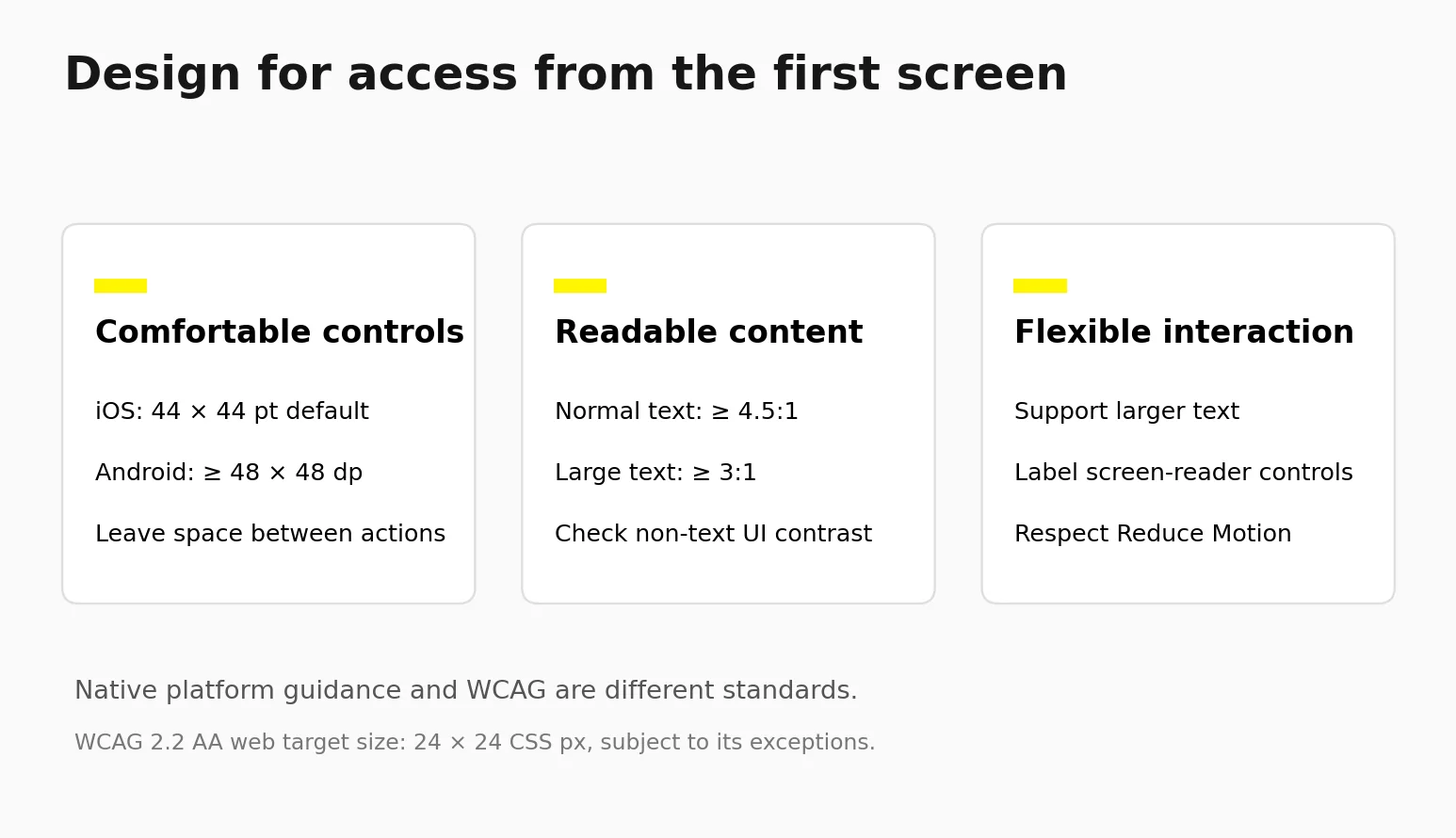
Contrast. WCAG 2.2 AA generally requires 4.5:1 contrast for normal text and 3:1 for large text. Meaningful non-text UI components and graphical objects have a separate 3:1 requirement, with exceptions. Test against real backgrounds; color alone must not carry essential meaning.
Touch targets. Apple lists a 44×44 pt default iOS control size, while its guidelines also describe platform-specific minimums. Use the current Apple accessibility guidance. Android recommends a touch target of at least 48×48 dp in its app accessibility guidance. These native measurements are distinct from WCAG 2.2 AA’s 24×24 CSS pixel web target criterion and its spacing and other exceptions.
Beyond these, support Dynamic Type on iOS and font scaling on Android so layouts reflow instead of truncating. Never use color alone to show status; add an icon or a label. Give every interactive element a clear accessible name. Provide reduced-motion alternatives for any animation that moves large areas of the screen.
For products serving EU markets, the European Accessibility Act covers specified product and service categories, including e-commerce and banking. Check the relevant scope, exemptions and national implementation instead of assuming that a short UI checklist establishes compliance.
Usability testing completes the picture. Start with a small formative round of representative users, including people with relevant access needs, then iterate. Five to eight participants can be practical for a focused round but do not guarantee that most problems will be found. Use realistic content and real devices, including a smaller phone.
The most expensive app design mistakes are copying concepts without context, designing only the happy path, chasing trends at the cost of legibility, and skipping a design system. Each one is avoidable if you catch it early.
Copying concept shots as if they were specifications. Dribbble explorations are valuable for direction and craft, but they often use perfect data. Before adopting a pattern, stress-test it with your longest product name, your emptiest account, and your slowest network.
Designing only the happy path. Empty states, loading states, errors, permission denials, and offline modes are where users actually form their opinion of an app. If a design file has no empty state for the home screen, the design isn't finished.
Trend-chasing that hurts legibility. Glass over busy imagery, low-contrast "elegant" gray text, and animations that delay every tap all look good in a presentation and frustrate users every day.
Onboarding that asks for too much, too early. Every question in onboarding should either personalize the experience right away, as in Lyvio, or be postponed.
Ignoring platform conventions. Users bring habits from every other app on their phone. Reinventing navigation or the back gesture without a strong reason adds friction for no gain.
No design system. Without shared tokens and components, the shipped app drifts away from the designs within a few sprints. A lean system with color, type, spacing, and core components pays for itself quickly.
Treating accessibility as a final QA step. By then, fixing contrast and target sizes usually means redesigning components.
Use our guide on how to build a design system to turn repeated patterns into consistent components.
A reliable app design process moves from discovery and research, to user flows and wireframes, to visual direction and prototyping, to usability testing, and finally to a design system and developer handoff, with iteration at every stage.
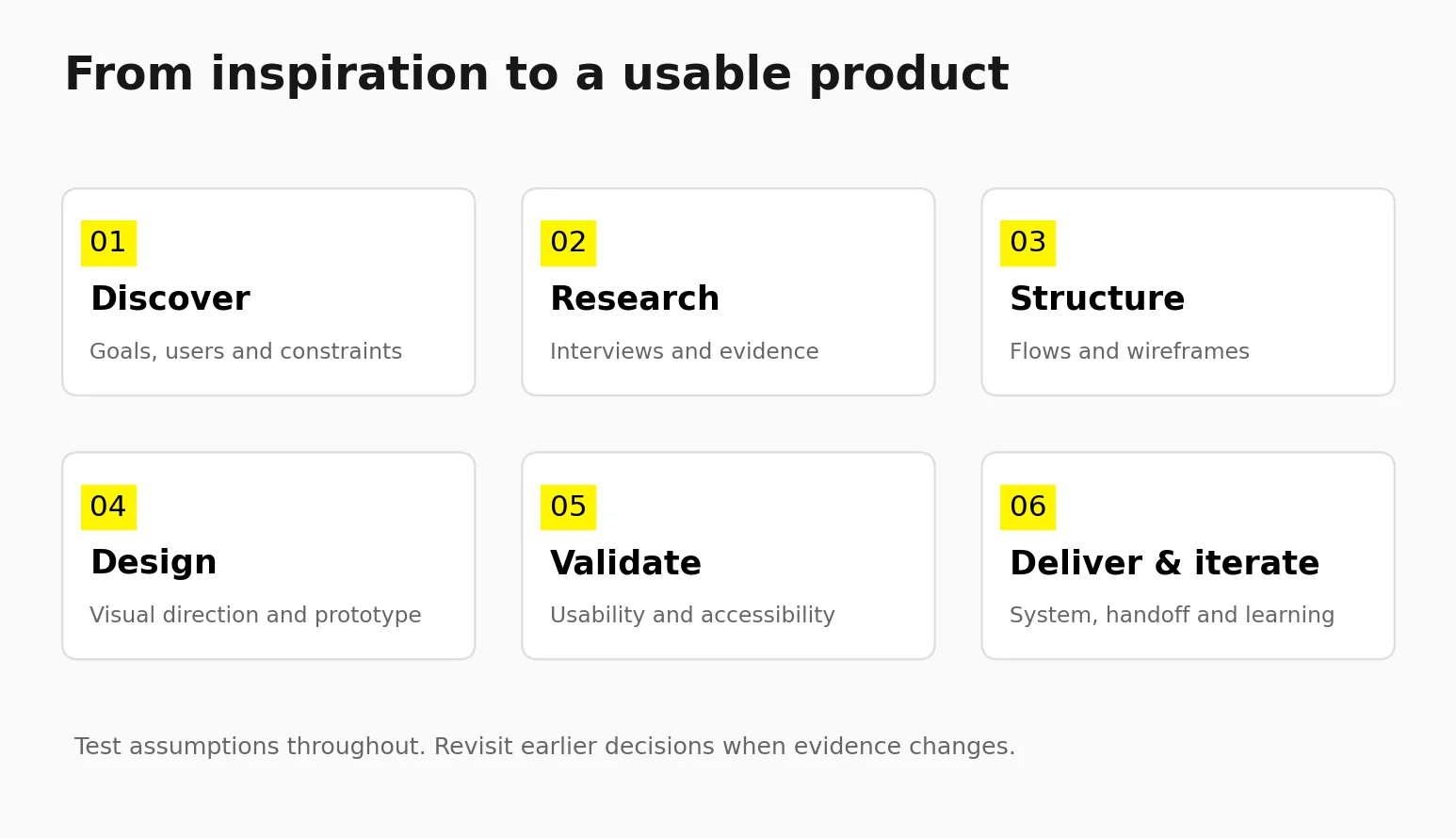
Discovery. Define the business goal, the primary users, and the one or two jobs the app must do exceptionally well. This is where inspiration is useful: collect references, then sort them by the problem they solve.
Research and personas. Even light research, such as five interviews and a review of competitors' app store reviews, surfaces the pain points worth designing around. In Lyvio, personal research into buyer pain points and property selection behavior directly shaped the AI recommendation flow.
User flows and wireframes. Map the critical paths end to end before thinking about visual style. Low-fidelity wireframes make it easy to change structure while it's still cheap.
Visual direction. Explore two or three directions against real screens, not only a mood board. Choose typography, color, and a grid system that supports the brand and the content.
Prototype and test. Build clickable prototypes of core flows and test with users. Leafy Plant’s published case study reports six sprints, more than 20 iterations and 40-plus screens. These are reported design-scope details, not evidence of a measured usability improvement.
Design system and handoff. Tokenized components, documented states, and annotated interactions reduce development ambiguity. At Wolfpixel we've invested in automating Figma-to-code handoff specifically because the gap between design and development is where quality usually slips. Learn more about how our UI/UX design agency works.
Post-launch iteration. Analytics and support tickets will show you the next design priorities. Plan design capacity after launch, not only before.
For a deeper workflow, read the UI UX design process and deliverables.
App design cost depends mainly on the number of unique screens and flows, the number of user roles, platform coverage, the depth of research, and whether you also need a brand identity. A focused MVP costs a fraction of what a multi-role product ecosystem costs.
The factors that move budgets the most, in my experience, are these. Additional user roles (customer, provider, admin) can add distinct flows, permissions and states; the increase depends on how much work the roles share. Supporting both iOS and Android well, rather than one generic design, adds platform-specific work. Research and usability testing add time upfront but reduce expensive rework later. A brand identity is a separate scope, although designing it alongside the product, as in Core.hr and Lyvio, produces more coherent results.
As of October 19, 2026, Wolfpixel’s homepage lists starting prices of $1,950 for mobile app design and $3,900 for product UI. These entry prices are scope-dependent, not a quote for every complete app. Confirm deliverables, platforms and timing in a written proposal, and compare the current design engagement options. The mobile service page distinguishes a defined App UX Sprint from larger new-app engagements.
How you engage matters as much as how much you spend. A fixed-scope project suits a well-defined MVP. A design subscription suits teams with an ongoing roadmap that need steady iteration without re-scoping every sprint. An in-house hire makes sense once design demand is constant and strategic. Whichever model you choose, you should receive editable source files, a documented component library, prototypes of the core flows, and clear ownership of the IP.
Watch out for proposals that skip research entirely, show only polished mockups with no flows or states, or promise a "complete app" without defining the screens involved.
For scope planning, compare the factors in our mobile app design cost guide.
Choose your app's design direction by starting from your users' context, meaning how often they use the app, how much they need to trust it, and how complex their tasks are, and only then deciding on visual style.
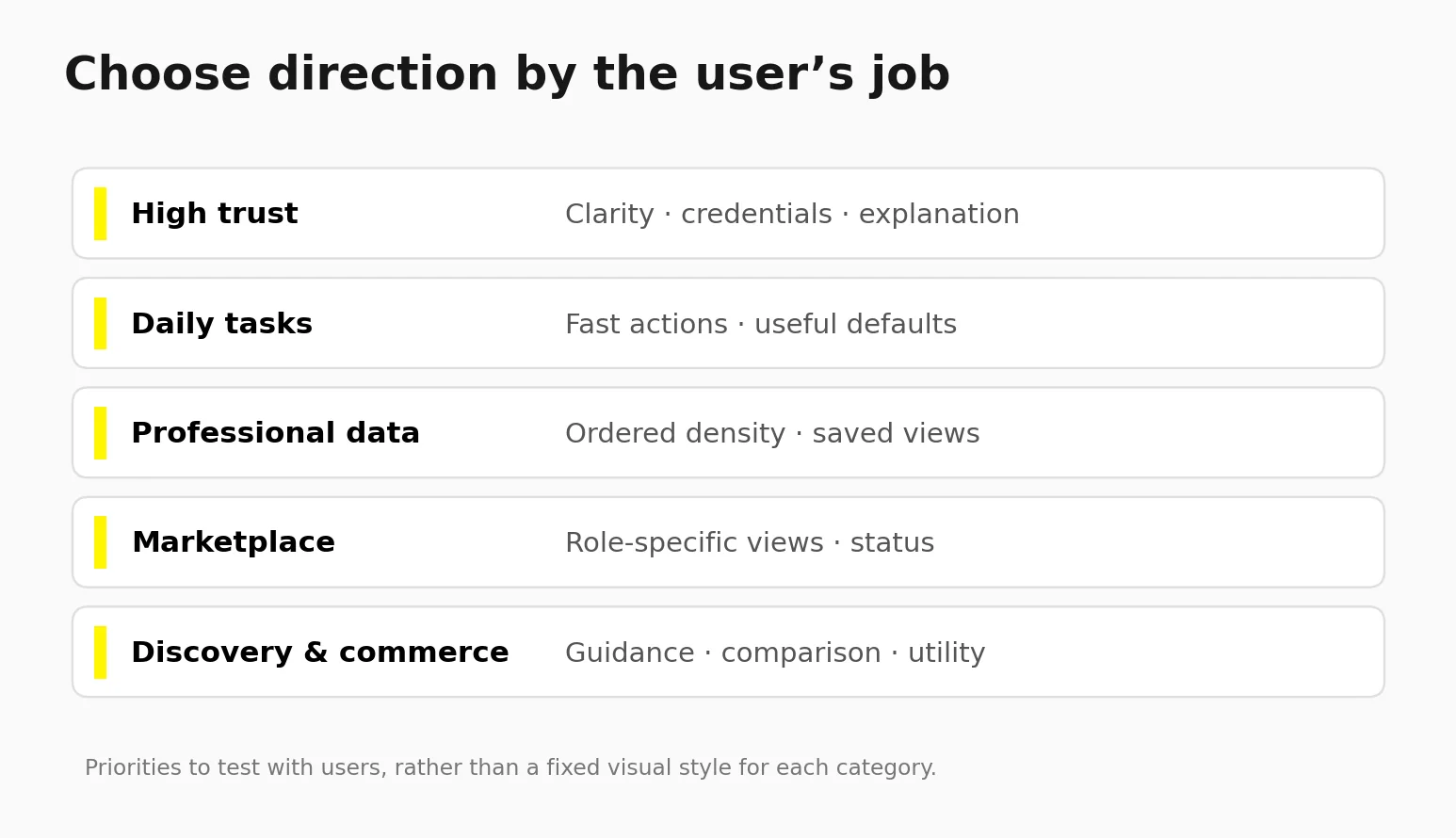
Here's the framework I use with founders.
| If your app is… | Lean toward… | Inspiration to study |
|---|---|---|
| High-trust (health, finance, property) | Calm palettes, upfront trust signals, explainable AI | CareUp, Lyvio, AI Finance Dashboard |
| Used daily for quick tasks | Minimal steps, thumb-zone actions, time-based home | Education Planner, OpsLoop, Core.hr |
| Data-heavy and professional | Dense but ordered layouts, dark or muted UI | Crimino, Healthcare Analytics Dashboard |
| A two-sided marketplace | Separate home screens per role, visible status and payments | Blenz, Delivery Earnings App |
| Discovery-led commerce | Personalization plus a utility feature | Leafy Plant, RoomMind AI |
Next, check your brand's maturity. If you're pre-launch without an identity, design brand and product together so they stay consistent. If you already have an established brand, the product should carry it without imitating your marketing site.
Finally, decide which trends earn a place. Adopt platform materials like Liquid Glass where they help users understand layering. Use bento layouts where content is truly modular. Use motion where it explains what happened. Skip anything that makes the product harder to read or slower to use.
The key takeaways: treat inspiration as a source of decisions, not decoration. Study real products, including their unglamorous states. Build accessibility into the foundation. Invest in a design partner who can explain the reasoning behind every screen, not just present it.
If you want experienced help turning inspiration into a product your users will actually adopt, explore Wolfpixel's mobile app design services or browse our full case study library.
Study the decision behind a screen, then test whether that decision fits your users, content and product constraints.
Share your app brief and book a free 30-minute design call.
Timelines depend on scope, research, roles, platforms and implementation requirements. Wolfpixel’s mobile service page distinguishes a defined 14-day App UX Sprint from larger new-app work that may take four to six weeks. Treat published case-study timelines as examples, and agree your own milestones and deliverables before kickoff.
Usually you should design one shared product and design system with platform-specific adjustments for navigation, controls, and system materials. With iOS moving toward Liquid Glass and Android toward Material 3 Expressive, a design that ignores both platforms will feel slightly out of place on each.
Not necessarily, but it helps. If you don't have one yet, developing brand and product design together, as in Core.hr and Lyvio, avoids an expensive retrofit later.
AI tools speed up exploration, copy, and production work. They don't replace understanding your users, making trade-offs between business goals and usability, or designing edge cases. Use them to move faster, not to skip research and testing.
Prepare a short brief covering your target users, the core problem the app solves, must-have features, competitors you admire or dislike (and why), your timeline, and your budget range. Existing brand assets and any user research will make the first weeks much more productive.






.svg)



.svg)

.svg)

.svg)

.svg)

.svg)
.svg)
